InstitutionalSuite Fusion [JOAT]InstitutionalSuite Fusion
Introduction
InstitutionalSuite Fusion is a single, overlay-style TradingView indicator that combines multiple market context layers into one coherent workspace:
Confluence (Fusion Wave): A bounded, smoothed confluence engine that maps multi-factor momentum/pressure into a clean wave around price.
Trend Regime + Matrix: A multi-length trend regime model that summarizes directional bias and coherence (agreement) across a configurable range of lengths.
Timeline Levels: Key opens and reference levels (day/week/month/year open, previous session highs/lows) for clean session structure.
Liquidity Zones + Ladder: Automatic imbalance-style zones, mitigation tracking, and a right-side “ladder” that lists the nearest active zones.
Dashboard + Matrix UI: Lightweight tables to keep state readable without cluttering the chart.
The purpose of Fusion is not to “merge indicators for the sake of merging”. It is built so the modules reinforce each other:
Confluence shows pressure and inflection.
Trend Regime shows whether that pressure aligns with the broader directional backdrop.
Timeline levels provide context for where price is trading relative to key opens and prior extremes.
Liquidity zones provide likely reaction areas and objective references for risk framing.
The ladder/dashboard compress all of the above into a fast decision surface.
Important Note
This is an analysis indicator . It does not place trades and it does not guarantee results. Use it as a decision-support layer inside a complete trading plan.
What You See On The Chart (Visual Guide)
1) Fusion Wave (Confluence Overlay)
When Modules -> Confluence is enabled, the indicator draws:
Fusion Basis (subtle baseline): an EMA-based anchor around which the wave oscillates.
Fusion Wave (colored line): the confluence projection mapped into price space using ATR scaling.
Wave Fill : a filled band between the wave and the basis to visualize pressure intensity.
Bar Tint (optional): candle colors are tinted to match the confluence gradient.
How to read it
Positive wave coloration / upward pressure: confluence is net bullish.
Negative wave coloration / downward pressure: confluence is net bearish.
Transitions around neutral: watch for shifts in pressure, then confirm with the Trend Regime and nearby Liquidity Zones/Timeline levels.
Why it stays clean and on-scale
Fusion confluence is explicitly bounded and smoothed to avoid runaway values that can distort chart scaling. The wave is derived from the bounded confluence and an ATR-based amplitude.
2) Regime Background (Optional)
When Modules -> Regime background is enabled, the chart background is softly tinted:
Bull regime: bias exceeds the neutral band.
Bear regime: bias falls below the neutral band.
Neutral regime: bias remains inside the neutral band.
Use it as “macro tint”, not as a signal by itself.
3) Timeline Levels (Session/Period Structure)
When Modules -> Timeline levels is enabled, Fusion can plot:
Day Open
Week Open
Month Open
Year Open (12M)
Previous Day High / Low
Previous Week High / Low
How to use them
Treat opens as “fair value anchors” for that period.
Use previous highs/lows as liquidity reference points and reaction zones.
Combine them with Liquidity Zones: confluence shifts near a timeline level is higher quality than a shift in empty space.
Note: level prices are aligned to the instrument’s tick size to keep plotted lines visually accurate.
4) Liquidity Zones (Imbalance-Style Zones)
When Modules -> Liquidity zones is enabled, Fusion detects and draws zones as boxes.
Zone types
Bull zones (typically below/around current price when created): represent upward displacement leaving an imbalance.
Bear zones (typically above/around current price when created): represent downward displacement leaving an imbalance.
Zone lifecycle
Creation: a zone is created only on confirmed bars and only if its size meets your minimum ATR-based threshold.
Aging/Fade: zones progressively fade as they get older (configurable).
Mitigation: a zone is marked mitigated when price trades back through its price range.
Optional deletion: mitigated zones can be kept (muted) or deleted automatically.
How to read zones
Active zones are potential reaction areas.
Mitigated zones are “used” and generally less relevant.
Zones are not a promise of reversal; they are objective references for planning, risk framing, and expectation management.
5) Liquidity Ladder (Nearest Zone Navigator)
When Modules -> Liquidity ladder is enabled (and zones are enabled), Fusion builds a right-side ladder on the last bar.
Each ladder row corresponds to one of the nearest active zones (by distance from current price).
Each row is plotted at the zone’s midpoint .
The label includes direction (BULL/BEAR), midpoint price, and zone size expressed in ATR units.
Rows are offset to the right by a configurable amount so they do not overlap active candles.
How to use the ladder
Quickly identify the nearest potential reaction area without scanning every box.
Use it to plan “where is the next level of interest above and below me?”
Combine with confluence: strong confluence into a nearby opposite-side zone is often where traders become more selective.
6) Dashboard (Compact State Readout)
When Modules -> Dashboard is enabled, a compact table is shown (position configurable):
State: Bull / Bear / Neutral based on confluence thresholding.
Flux: the bounded confluence value.
Bias: the aggregate trend regime bias.
Coh %: coherence (agreement) across the selected matrix lengths.
Zones B / Zones R: count of active bull and bear zones.
Nearest: nearest active zone midpoint.
The dashboard updates on the last bar to stay responsive and light.
7) Matrix Table (Trend Regime Breakdown)
When Modules -> Matrix table is enabled, Fusion prints a multi-column view of trend regime across lengths.
Header
Regime (Bull/Bear/Neutral)
Bias (aggregate)
Coherence (agreement)
Rows/columns
Len: the actual length used for that column.
Trend: the trend value for that length.
Str: normalized strength (0-100).
State: Bull / Bear / Neutral per length.
How to interpret coherence
High coherence means many lengths agree on direction (cleaner regime).
Low coherence means lengths disagree (chop/transition/mean-reversion risk).
How The Confluence Engine Works (Conceptual, No Code)
Fusion confluence blends multiple normalized components into a single bounded score. Each component is normalized so that no single raw scale dominates.
Components
ZEMA delta (ATR-normalized): adaptive trend impulse using a zero-lag EMA concept versus a standard EMA.
RSI normalization: RSI mapped into a symmetric -1 to +1 space around 50.
MACD histogram impulse (ATR-normalized): momentum agreement and acceleration.
Channel position (range-normalized): where price sits inside a lookback channel.
Volume impulse (standardized): relative volume change signed by price direction.
Weights and smoothing
Each component has a configurable weight.
The blend is smoothed to reduce noise.
The final result is bounded to keep visuals stable and readable.
HTF Blend (Optional)
When enabled, Fusion blends current timeframe confluence with a higher-timeframe confluence sample to reduce low-timeframe noise.
The HTF sample is taken from confirmed higher-timeframe data (designed to avoid forward-looking behavior).
How To Use InstitutionalSuite Fusion (Practical Workflow)
Step 1: Start with a clean chart
Fusion is meant to be readable on its own. Use a normal candlestick chart and avoid stacking other indicators on top unless you have a clear reason.
Step 2: Identify regime first (Matrix + Coherence)
If regime is Bull or Bear and coherence is strong, you are likely in a trending environment.
If regime is Neutral or coherence is low, be cautious with trend assumptions and focus more on levels and reactions.
Step 3: Use Timeline Levels to frame context
Day/Week opens help define where price is “holding value” for the period.
Previous highs/lows often act as reaction magnets.
Step 4: Use Liquidity Zones as objective areas
Zones can act as potential reaction areas and reference points.
Prefer zone interactions that also align with timeline levels or strong regime context.
Step 5: Use Confluence to time the pressure shift
Treat confluence as “pressure”.
A confluence shift near a meaningful level/zone is more informative than a shift in open space.
Confluence can lead; regime can confirm.
Step 6: Use the Ladder to stay oriented
The ladder is your “nearest active zones” list.
Use it to plan what is closest above and below price at a glance.
Inputs Guide (What Each Setting Does)
Core
Source: price series used across the indicator (default: close).
Theme
Bear / Mid / Bull colors: define the gradient used across the wave, tints, and UI accents.
Bar tint: transparency strength applied to candle tint.
Background tint: transparency strength applied to regime background.
Modules
Confluence: enables Fusion Wave and bar tinting.
Regime background: optional background regime tint.
Timeline levels: plots period opens and prior highs/lows.
Liquidity zones: plots imbalance-style zones and mitigation.
Matrix table: multi-length trend regime breakdown (position configurable).
Liquidity ladder: nearest-zone navigator (requires zones).
Dashboard: compact state readout (position configurable).
Dash position / Matrix position: choose where tables appear.
Confluence
ZEMA length: responsiveness of the adaptive impulse component.
RSI length: RSI smoothing window.
MACD fast/slow/signal: MACD impulse tuning.
Channel length: lookback window for channel position.
Smoothing: final smoothing of confluence blend.
Wave basis length: smoothing of the wave baseline.
Wave amplitude (ATR): how far the wave can swing away from basis.
Wave fill transparency: opacity of the filled band.
Weights: relative contribution of each component.
HTF blend / HTF / HTF weight: blends higher-timeframe confluence into the final score.
Trend Regime
Base length: starting length for the regime matrix.
Matrix columns: how many lengths are evaluated.
Length step: distance between lengths (base + step * column).
Neutral band: dead-zone around zero for Bull/Bear/Neutral classification.
Strong coherence %: threshold used for coloring/interpretation of coherence strength.
Std blend: how much the model blends “EMA trend” with a “standardized momentum/range” component.
Timeline Levels
Day/Week/Month/Year open toggles
Prev day H/L, Prev week H/L toggles
Extend right: extend levels into the future.
Line width: thickness of timeline lines.
Liquidity Zones
Zones (Bull/Bear/Both): which zone directions to detect.
Min zone size (ATR): filters out tiny zones.
Use wicks (high/low): if enabled, uses full wicks; otherwise uses candle bodies.
Max active boxes: maximum zones kept on chart.
Fade after N bars: controls how quickly zones visually fade.
Delete when mitigated: deletes mitigated zones instead of keeping them muted.
Border / Fill transparency: zone styling.
Ladder rows: how many nearest zones to display.
Ladder X offset: how far to the right the ladder is plotted.
Alerts
Fusion includes alert conditions for:
Fusion Bull Shift: confluence crosses above 0.
Fusion Bear Shift: confluence crosses below 0.
Fusion New Bull Zone: a new bullish zone is formed on a confirmed bar.
Fusion New Bear Zone: a new bearish zone is formed on a confirmed bar.
Fusion Zone Mitigated: at least one zone is mitigated on a confirmed bar.
Alert setup guidance
For most users, “Once Per Bar Close” is the safest choice.
Use alerts as notifications, not as automatic execution logic unless you have built and tested a full execution system.
Accuracy, Data Handling, and Repainting Notes
HTF blend is designed to reference confirmed higher-timeframe values so it does not rely on future bars.
Timeline previous highs/lows are based on completed periods.
Zones are created on confirmed bars; mitigation state updates as price trades back into zones.
Any indicator will recalculate historically if you change settings; that is expected behavior.
Recommended Use Cases
Trend continuation: strong regime + strong coherence; use zones/timeline as pullback references.
Transition/mean reversion: neutral/low coherence; prioritize levels and reactions over trend assumptions.
Level-based planning: timeline opens and prior highs/lows, plus nearest active zones from the ladder.
Limitations (Be Realistic)
Fusion is a visual decision-support tool, not a complete trading system.
Zones represent objective price structures, not guaranteed reversal points.
Different symbols and sessions can cause opens and period boundaries to appear differently depending on the exchange/session settings.
Very low-liquidity markets can produce noisier zones and confluence readings.
Resource limits exist (lines/boxes/labels). The script manages objects, but extremely dense charts may require lowering max boxes or ladder rows.
Source Protection and Publication Mode
This indicator is published as protected (closed-source) to preserve the integrity of the work, reduce unauthorized redistribution, and allow continued iteration without exposing implementation details. Users can apply the indicator normally on their charts, but the underlying source is not viewable.
Disclaimer
This indicator is provided for educational and informational purposes only and does not constitute financial advice. Trading involves risk. You are responsible for your own decisions and risk management.
-Made with passion by officialjackofalltrades
Closed

Fractal Support & Resistance [JOAT]
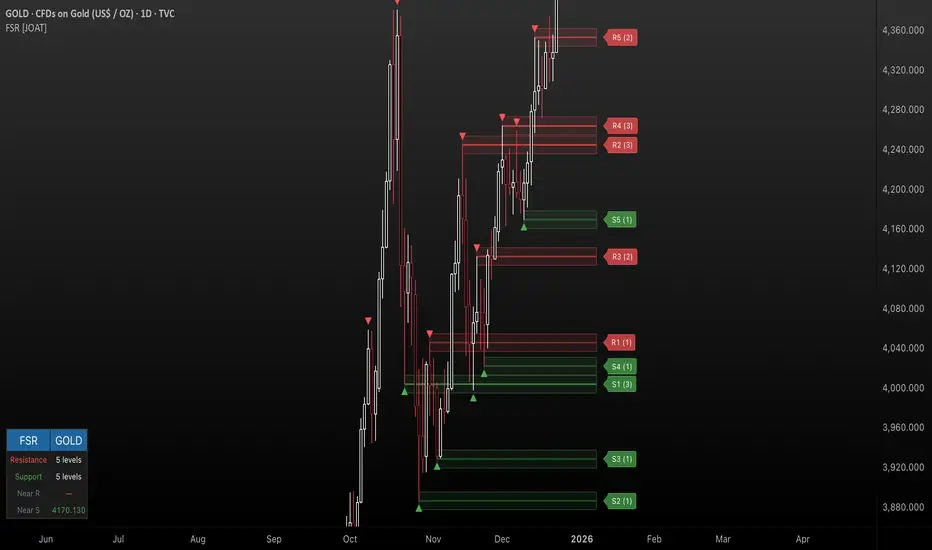
Fractal Support & Resistance — Automatic Level Detection with Volume Weighting
Fractal Support & Resistance automatically identifies key price levels using a proprietary combination of fractal detection, volume analysis, and dynamic touch counting. Levels are intelligently styled based on their strength and how many times they have been tested, giving you instant visual feedback on level importance.
Why This Script is Protected
This script is published as closed-source to protect the proprietary level management algorithm and the unique volume-weighted strength calculation methodology from unauthorized republishing. The specific implementation of touch detection, level merging logic, and dynamic opacity calculations represents original work that differentiates this from standard fractal indicators.
What Makes This Indicator Unique
Unlike basic fractal indicators that simply mark pivot points, this system:
Tracks how many times each level has been tested (touch counting)
Weights level importance by volume at the fractal point
Merges nearby fractals into single levels instead of cluttering the chart
Dynamically adjusts visual opacity based on level strength
Provides zone boxes around levels for realistic price reaction areas
What This Indicator Does
Detects fractal pivot highs and lows to establish support and resistance levels
Tracks how many times each level has been touched or tested
Weights level importance by volume at the fractal point
Draws extending lines and zone boxes for each level
Dynamically adjusts level opacity based on touch count for visual strength indication
Provides a dashboard with nearest levels and counts
Core Methodology
The indicator uses Williams Fractal concepts as a foundation but extends them with proprietary enhancements:
Fractal Detection — Identifies pivot highs and lows where price creates local extremes with confirmation bars on each side. A fractal high requires the highest point with lower highs on both sides; a fractal low requires the lowest point with higher lows on both sides.
Level Clustering — New fractals within a tolerance zone (based on Zone Padding %) update existing levels rather than creating duplicates. This keeps the chart clean and focuses on significant price areas.
Volume Integration — Volume at each fractal point is accumulated to weight level significance. Higher volume fractals are considered more important.
Touch Tracking — The system monitors when price approaches existing levels and increments touch counts. More touches indicate stronger, more significant levels.
Visual Strength System
Level appearance changes dynamically based on market interaction:
Newer or less-tested levels appear more transparent (up to 80% transparency)
Each additional touch reduces transparency by 15%
Heavily tested levels become more prominent and opaque (minimum 20% transparency)
Labels display level number and touch count (e.g., "R1 (3)" = Resistance 1 with 3 touches)
Zone boxes provide visual areas around each level
Color Scheme
Resistance Color — Default: #FF5252 (red) — Used for resistance levels and zones
Support Color — Default: #4CAF50 (green) — Used for support levels and zones
Zone Fill — 90% transparent version of level color
Zone Border — 70% transparent version of level color
Labels — 30% transparent background with white text
Dashboard Information
The on-chart table (bottom-left corner) displays:
Number of active resistance levels meeting minimum touch requirement
Number of active support levels meeting minimum touch requirement
Nearest resistance level above current price
Nearest support level below current price
Inputs Overview
Fractal Settings:
Fractal Period — Bars on each side for fractal confirmation (default: 2, range: 1-10)
Max Levels Per Side — Maximum resistance and support levels to track (default: 5, range: 1-20)
Zone Padding (%) — Level zone width as percentage of price (default: 0.2%, range: 0-2%)
Filtering:
Volume Weight Levels — Toggle volume-weighted level importance (default: on)
Min Touches to Show — Filter out levels with fewer touches (default: 1, range: 1-10)
Lookback Period — Historical bars to analyze for level detection (default: 200, range: 50-500)
Visual Settings:
Resistance/Support Colors — Customizable color scheme
Show Zone Boxes — Toggle filled zone areas around levels
Show Level Labels — Toggle level labels with touch counts
Show Fractal Markers — Toggle small triangles at fractal points
Show Dashboard — Toggle the information table
Line Width — Thickness of level lines (default: 2, range: 1-5)
How to Use It
For Support/Resistance Trading:
Use levels with higher touch counts as stronger support/resistance references
More opaque levels have been tested more times and are more significant
Watch for price reactions at zone boundaries, not just exact level prices
Combine with candlestick patterns at levels for entry signals
For Breakout Trading:
Watch for breakouts when price closes beyond a level
Levels with many touches that finally break often produce strong moves
Use the zone box—a close beyond the zone is more significant than just touching the level
Set alerts for resistance/support breaks
For Target Setting:
Use the nearest resistance as a profit target for long positions
Use the nearest support as a profit target for short positions
Dashboard shows these levels for quick reference
Alerts Available
FSR Resistance Break — Price closes above a resistance level
FSR Support Break — Price closes below a support level
FSR New Fractal High — Fresh fractal high detected
FSR New Fractal Low — Fresh fractal low detected
Best Practices
Increase Fractal Period for fewer but more significant levels
Use Min Touches filter to show only well-tested levels
Volume weighting helps identify institutionally significant levels
Combine with trend indicators—trade with the trend at levels
This indicator is provided for educational purposes. It does not constitute financial advice. Past performance does not guarantee future results. Always conduct your own analysis and use proper risk management before making trading decisions.
— Made with passion by officialjackofalltrades
Neural Trend Engine [JOAT]Neural Trend Engine - Multi-Layer Adaptive Trend Detection
Neural Trend Engine uses a multi-layer filtering approach inspired by neural network concepts. It combines multiple adaptive moving averages with proprietary momentum and volatility weighting to generate trend signals with reduced lag and improved confidence scoring.
Why This Script is Protected
This script is published as closed-source to protect the proprietary signal composition algorithm and the specific weighting methodology from unauthorized republishing. The unique combination of adaptive layer calculations, momentum normalization, and volatility integration represents original work that goes beyond standard indicator implementations.
What Makes This Indicator Unique
Unlike simple moving average crossover systems, Neural Trend Engine:
Uses three Kaufman Adaptive Moving Averages (KAMA) that automatically adjust their smoothing based on market efficiency
Combines layer alignment, momentum, and volatility into a single "neural signal"
Provides signal strength percentages so you know the conviction level of each signal
Creates a visual trend cloud that makes direction immediately obvious
What This Indicator Does
Plots three adaptive moving average "layers" that respond dynamically to market efficiency
Creates a trend cloud between fast and slow layers for visual trend identification
Generates weighted composite signals from layer alignment, momentum, and volatility
Displays buy/sell labels with signal strength percentages
Provides a comprehensive dashboard with multi-component breakdown
Colors the neural line and cloud based on current trend direction
Core Methodology
The indicator employs a three-layer adaptive system where each layer responds to market conditions at different speeds:
Fast Layer (default: 8) — Quick response for short-term direction changes
Medium Layer (default: 21) — Intermediate trend reference
Slow Layer (default: 55) — Long-term trend anchor
Each layer uses efficiency-based adaptation, meaning they become more responsive during trending conditions and smoother during choppy markets.
The neural signal is a proprietary composite that weighs three distinct market components:
Momentum Component (default: 40%) — Measures directional price velocity, normalized to its recent range
Trend Component (default: 35%) — Evaluates alignment between the three adaptive layers
Volatility Component (default: 25%) — Incorporates market volatility state into signal generation
These components are combined using a weighted formula that has been calibrated to balance responsiveness with noise reduction.
Signal Generation
Direction changes occur when the smoothed neural signal crosses a configurable strength threshold:
Bullish — Signal exceeds positive threshold with layer alignment confirmation
Bearish — Signal drops below negative threshold with layer alignment confirmation
Neutral — Signal remains within threshold range, indicating consolidation
Signal strength percentages indicate the conviction level of each signal, helping traders assess trade quality. Higher percentages suggest stronger trend conviction.
Visual Features
Trend Cloud — Filled area between fast and slow layers, colored by trend direction
Neural Line with Glow — Weighted average of all three layers with glow effect
Medium Layer — Subtle white line showing intermediate trend
Signal Labels — BUY/SELL labels with strength percentages at signal points
Small Markers — Alternative triangle markers when labels are disabled
Color Scheme
Bullish Color — Default: #26A69A (teal green) — Used for bullish trends and signals
Bearish Color — Default: #EF5350 (red) — Used for bearish trends and signals
Cloud Fill — 85% transparent version of trend color
Neural Line Glow — 60% transparent version for glow effect
Dashboard Information
The on-chart table (top-right corner) displays:
Current direction (BULLISH, BEARISH, or NEUTRAL)
Neural signal percentage
Layer alignment status (ALIGNED UP, ALIGNED DOWN, or MIXED)
Momentum direction and percentage
Trend strength percentage
Inputs Overview
Neural Layers:
Fast Layer — Period for fast adaptive MA (default: 8, range: 2-50)
Medium Layer — Period for medium adaptive MA (default: 21, range: 5-100)
Slow Layer — Period for slow adaptive MA (default: 55, range: 10-200)
Source — Price source for calculations (default: close)
Sensitivity:
Momentum Weight — Weight for momentum component (default: 0.4)
Trend Weight — Weight for trend/layer alignment (default: 0.35)
Volatility Weight — Weight for volatility component (default: 0.25)
ATR Period — Period for volatility calculations (default: 14)
Visual Settings:
Bullish/Bearish Colors — Customizable color scheme
Show Trend Cloud — Toggle the filled cloud area
Show Signal Labels — Toggle BUY/SELL labels with percentages
Show Neural Line — Toggle the main trend line
Show Dashboard — Toggle the information table
Alerts:
Await Bar Confirmation — Wait for bar close before triggering (recommended)
Min Signal Strength — Threshold for direction changes (default: 0.3 = 30%)
How to Use It
For Trend Following:
Follow the trend cloud color for overall market direction
Enter long when cloud turns bullish (teal) and signal strength is high
Enter short when cloud turns bearish (red) and signal strength is high
Use the neural line as a trailing stop reference
For Signal Trading:
Wait for BUY/SELL labels to appear
Check the signal strength percentage—higher is better
Confirm with dashboard showing aligned layers
Avoid signals during MIXED layer alignment
For Confirmation:
Use Neural Trend Engine to confirm signals from other systems
Strong confirmation when all three layers are aligned
Dashboard shows momentum and trend strength for additional context
Alerts Available
NTE Buy Signal — Bullish direction change detected
NTE Sell Signal — Bearish direction change detected
NTE Direction Change — Any trend direction change
Best Practices
Higher signal strength percentages indicate more reliable signals
Wait for layer alignment (shown in dashboard) before entering trades
Use on higher timeframes for more reliable trend identification
Combine with support/resistance levels for entry timing
This indicator is provided for educational purposes. It does not constitute financial advice. Past performance does not guarantee future results. Always conduct your own analysis and use proper risk management before making trading decisions.
— Made with passion by officialjackofalltrades

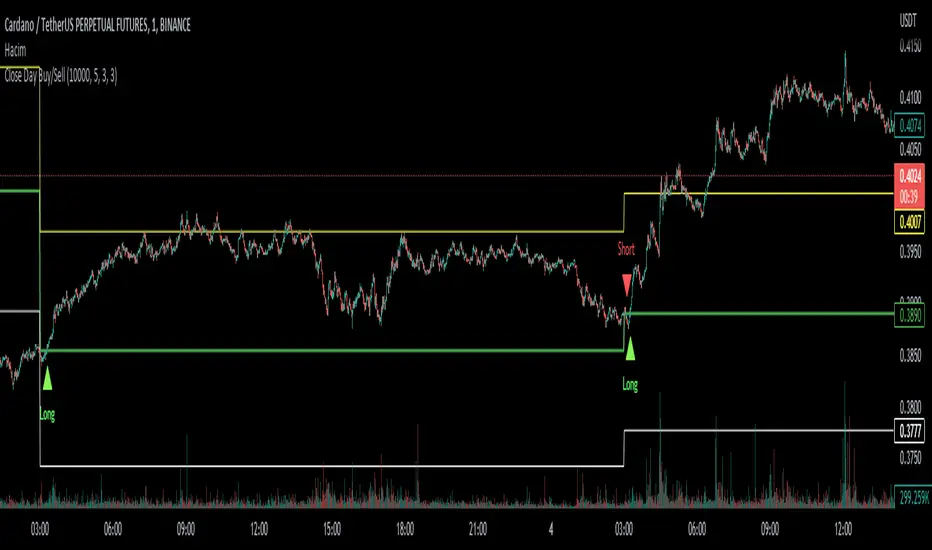
Close Day Buy/Sell)It draws a line to the previous day's close and generates a long/buy signal if the candle close is above the previous day's close for short periods, and generates a short/sell signal if the candle close is below the previous day's close.
it makes more sense to use it in 1-minute periods.
in the settings section
day close = the previous day's close line
Tp lines = Take profit lines
Moving average = simple moving average for generating a signal when it breaks the previous day's closing line
longTP = profit rate
ShortTP = profit rate
may you always win.
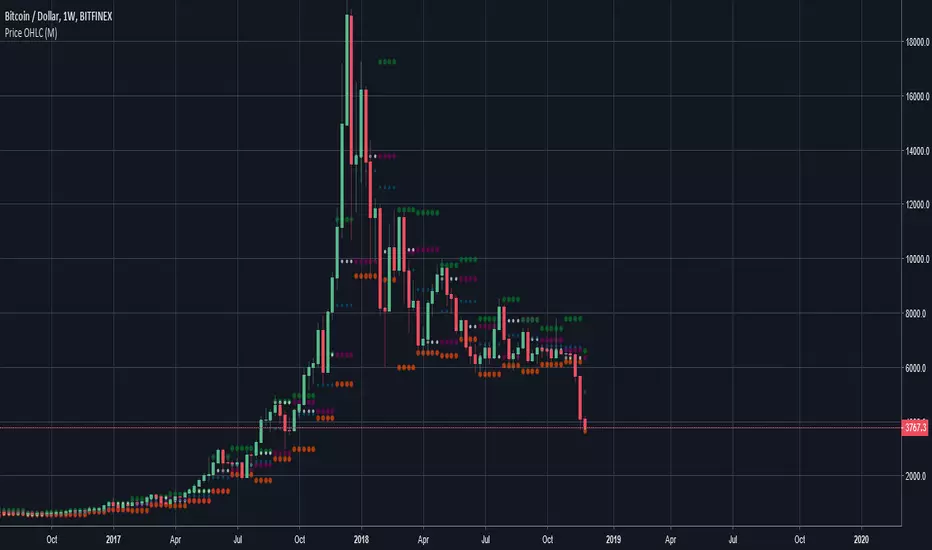
Price Open/High/Low/CloseAnother indicator that shows Open, High, Low, Close on multiple timeframes.
It can be used to discover possible support/resistance areas on lower timeframes.
Other indicators may do the same thing but just added some custom timeframes
Not closed yet scriptI made this to serve as a reminder if a candle is not closed yet. This is to avoid entering a trade based on a candle that is not closed because this candle could look alot different by the time it closes. Good luck.
